Today, there are many gamers playing at a pro level, and pro-level gameplay becomes possible when you use the right Free Fire sensitivity settings. Professional gamers, esports players, and YouTube live streamers always keep changing and optimizing their custom sensitivity settings, aim control, headshot settings, and HUD setup to improve their performance.
We are providing those same pro Free Fire sensitivity settings that can make your gaming experience up to 10X better. With the help of this Free Fire sensitivity calculator, you can improve your aim accuracy, headshot rate, drag aim, and overall game performance. If you also enjoy customizing your gaming profile, you can use our Invisible Text Generator to create a unique blank name.
By using the right settings, you can get smoother camera movement, better shooting control, and push your rank more easily. The best part is that this Free Fire sensi calculator is completely free and easy to use for every player.
What Is Free Fire Sensitivity (Sensi)?
Free Fire Sensitivity is a type of calculator where players can find popular sensitivity settings used by YouTubers, live streamers, and pro gamers. It helps users discover the best headshot sensitivity, aim settings, and custom sensitivity setups to improve their gameplay and gaming skills. For an extra touch of uniqueness, players often combine perfect sensitivity with a Free Fire Invisible Space to hide their ID from opponents.
We regularly provide the latest and updated Free Fire sensitivity settings because the game keeps receiving updates over time, and sensitivity values can change with new patches. Free Fire also offers its own default sensitivity options such as Basic, Medium, and High, but many players do not get accurate aim or smooth control using these default settings.
That is why we provide the most popular and pro-level gaming sensitivity settings that professional gamers use for better headshots, aim accuracy, and overall performance. These settings can help players enjoy smoother gameplay and improve their skills like pro players.
Sensitivity vs DPI
Many players confuse sensi and DPI. Here is the difference:
- Sensitivity is the setting inside the Free Fire game.
- DPI (dots per inch) is the speed of your phone's touch screen response.
Both work together. But in Free Fire, you control your sensi through the in-game settings panel. You do not need to change your phone's DPI.
Why Sensi Matters in Free Fire
Your sensi for Free Fire directly affects:
- Headshot accuracy — higher sensi allows faster flick shots
- Recoil control — the right sensi reduces gun shake
- Movement speed — good sensi helps you rotate quickly on the map
- Close-range combat — high sensi wins 1v1 situations faster
- Long-range shooting — low sensi gives better scope precision
Good players always fine-tune their Free Fire sensitivity settings before entering ranked matches.
Free Fire Sensitivity Calculator — How to Use It
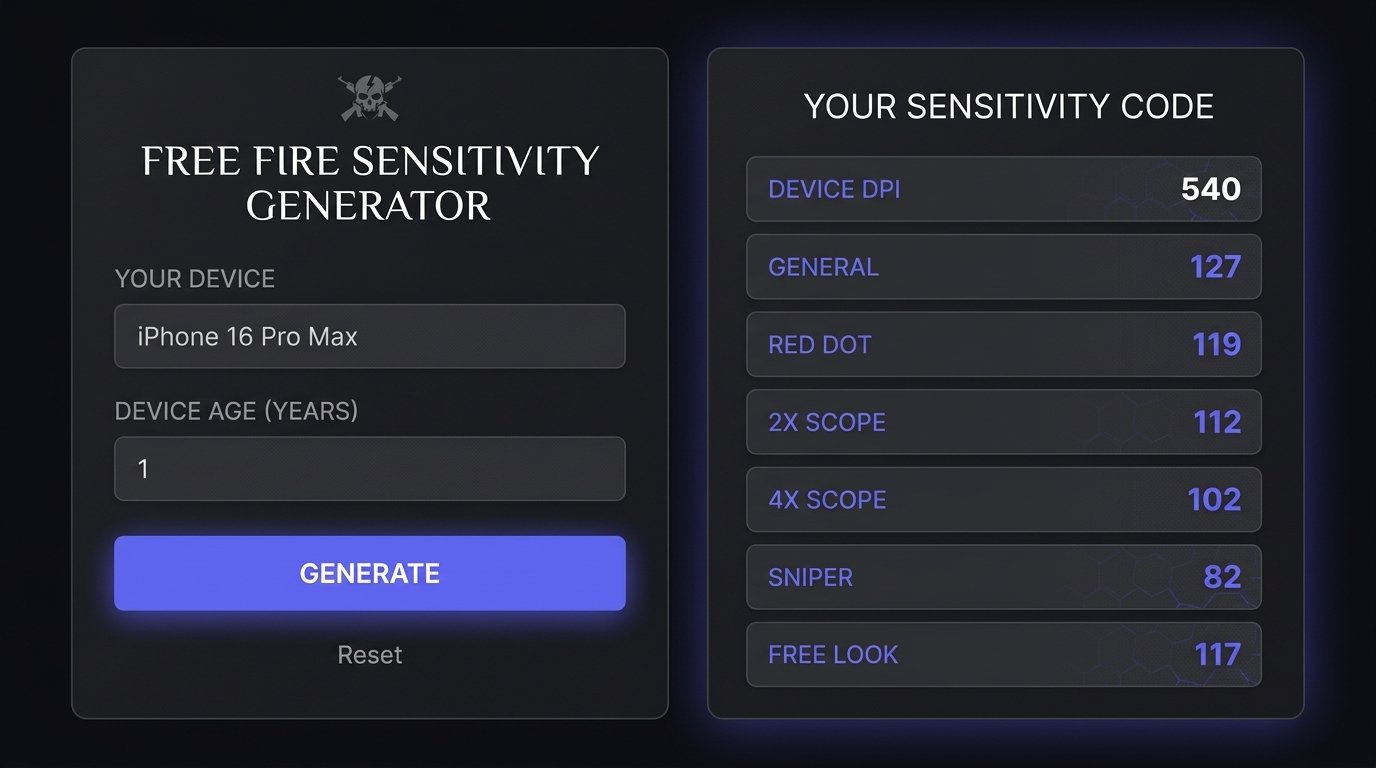
A Free Fire sensitivity calculator is a tool that generates the best sensi values based on your device type. Instead of testing random numbers, the calculator gives you a starting point that works for your phone or tablet. Just like mobile shooters use specialized tools like the COD Mobile Invisible Name generator to hide their identity, pro players use sensi calculators to get the perfect aim settings.
Step 1: Choose your device type
Each device provides a different touch response speed. An Android device at 60Hz feels different from an iPhone at 120Hz. The sensi generator adjusts values for each device type. First, pick your device category:
- Android phone (most common)
- iPhone / iPad (iOS)
- PC Emulator (BlueStacks, LDPlayer, MEmu)
Step 2: Select your RAM & GPU tier
Higher-end phones run at 90fps or 120fps. These phones need slightly lower sensi because the screen refreshes faster and small finger movements feel bigger. Next, choose your phone's performance level:
- Low-end — 2GB to 3GB RAM (budget phones)
- Mid-range — 4GB to 6GB RAM (popular phones)
- High-end / Flagship — 8GB to 12GB RAM (gaming phones)
Step 3: Get your generated sensi code
After you select your device and RAM tier, the sensi generator gives you a complete sensitivity code. This code includes all six sliders:
- General
- Red Dot
- 2x Scope
- 4x Scope
- Sniper Scope
- Free Look
You copy this code and enter the values into your Free Fire settings. Then you practice in training mode for 10 to 15 minutes to get comfortable. And if you also play tactical PC shooters, don't forget to check out our Valorant Crosshair Generator to copy the exact crosshairs used by VCT pro players.
Best Sensi for Free Fire by Device (2026 Updated)
Below are the recommended Free Fire sensitivity settings for each device tier. These values come from top players and community testing.
Sensi for Free Fire on Android (Low-End Devices)
Low-end phones run at 30fps to 60fps. They need higher sensitivity values because the screen response is slower.
| Slider | Recommended Value |
|---|---|
| General | 85 – 95 |
| Red Dot | 80 – 90 |
| 2x Scope | 70 – 80 |
| 4x Scope | 60 – 70 |
| Sniper Scope | 40 – 55 |
| Free Look | 75 – 85 |
Devices in this tier: Redmi 9A, Samsung Galaxy A03, Tecno Spark 8, Infinix Hot 11. These phones benefit from higher general sensi. It compensates for the slower screen touch response.
Sensi for Free Fire on Android (Mid & High-End Devices)
Mid-range and flagship phones run at 60fps to 90fps. They need balanced sensitivity values.
| Slider | Recommended Value |
|---|---|
| General | 75 – 90 |
| Red Dot | 65 – 80 |
| 2x Scope | 55 – 70 |
| 4x Scope | 45 – 60 |
| Sniper Scope | 30 – 45 |
| Free Look | 65 – 80 |
Devices in this tier: Redmi Note 12, Samsung Galaxy A54, POCO X5 Pro, OnePlus Nord, iPhone 12, iPhone 14. These values give you smooth aim control and fast rotation speed at the same time.
Free Fire Sensitivity for iPhone / iOS
iPhones have a more responsive touch screen. iOS devices also run Free Fire at higher frame rates. Because of this, iOS players usually need 5 to 10 points lower than Android players.
| Slider | Recommended Value |
|---|---|
| General | 70 – 85 |
| Red Dot | 60 – 75 |
| 2x Scope | 50 – 65 |
| 4x Scope | 40 – 55 |
| Sniper Scope | 25 – 40 |
| Free Look | 60 – 75 |
Devices in this tier: iPhone 12, iPhone 13, iPhone 14, iPhone 15, iPhone 16, iPad Pro. The iPhone 15 Pro and iPhone 16 support 120Hz ProMotion display. On these phones, use the lower end of each range for best headshot accuracy.
Free Fire Sensitivity for PC Emulator (BlueStacks / LDPlayer)
PC emulator players use a mouse instead of touch. The mouse DPI controls how fast the cursor moves. In-game sensi works on top of the DPI. Recommended Mouse DPI: 400 to 800 DPI.
| Slider | Recommended Value |
|---|---|
| General | 55 – 70 |
| Red Dot | 50 – 65 |
| 2x Scope | 45 – 60 |
| 4x Scope | 35 – 50 |
| Sniper Scope | 20 – 35 |
| Free Look | 50 – 65 |
Emulator players always use lower in-game sensi. The mouse already provides precise control that a finger touch cannot match.
Free Fire Sensitivity by Device DPI — Reference Table 2026
| Device DPI | General | Red Dot | 2X | 4X | Sniper | Free Look | Best For |
|---|---|---|---|---|---|---|---|
| 320 DPI | 95 | 90 | 85 | 75 | 50 | 65 | Smooth gameplay & beginners |
| 400 DPI | 100 | 95 | 90 | 80 | 55 | 70 | Better aim control |
| 480 DPI | 100 | 100 | 95 | 85 | 60 | 75 | Balanced sensitivity setup |
| 560 DPI | 100 | 100 | 100 | 90 | 65 | 80 | Fast movement & drag aim |
| 640 DPI | 100 | 100 | 100 | 95 | 70 | 85 | Headshots & quick reactions |
| 720 DPI | 100 | 100 | 100 | 100 | 75 | 90 | Pro gamers & rank push |
| 800 DPI | 100 | 100 | 95 | 90 | 80 | 100 | Fast gameplay & aggressive players |
Free Fire Sensitivity Settings Explained
Free Fire has six sensitivity sliders. Each slider controls a different situation inside the game. Understanding each one helps you fine-tune your Free Fire sensitivity perfectly.
General Sensitivity
General sensitivity controls your camera speed during normal gameplay — when you walk, run, or look around without a scope. It also controls how fast you aim without any scope attachment.
Red Dot / 2x / 4x Scope Sensitivity
Red dot sensitivity controls your aim speed when you use a Red Dot sight attachment. The red dot is the most common close-range scope in Free Fire. Best range: 65 to 90. Keep your red dot sensi slightly lower than your general sensi for better shot accuracy.
2x Scope Sensitivity
The 2x scope is a medium-range attachment. It zooms in more than the red dot. Your sensi should be lower here because small movements matter more at medium range. Best range: 55 to 75.
4x Scope Sensitivity
The 4x scope is for long-range targets. At this zoom level, even a small finger movement shifts your aim a lot. Keep this sensi low. Best range: 40 to 60. Many pro players set their 4x sensi at 45 to 55 for consistent long-range shots.
Sniper / AWM Sensitivity
Sniper sensitivity controls the AWM, Kar98k, and other bolt-action rifle scopes. These guns need extreme precision. One mistake means a missed shot and a reload.
Free Look Sensitivity
Free look is a feature that lets you look around without moving your character. You activate it by holding the free look button. Best range: 65 to 85. High free look sensi helps you scan the map, spot enemies, and check your surroundings faster during rotations.
Best Free Fire Sensitivity for Headshots
Headshots are the fastest way to eliminate enemies in Free Fire. One headshot with a shotgun or sniper is enough to kill. Getting consistent headshots requires the right sensi for Free Fire.
Ideal Sensi Range for Headshot Consistency
For reliable headshots, most top players use:
- General: 88 to 98
- Red Dot: 78 to 88
- 2x Scope: 65 to 75
High general sensitivity lets you flick your aim to the enemy's head quickly. This is the key to landing headshots in close and medium-range fights. Low scope sensitivity (2x, 4x) gives you stable aim when you are already zoomed in on an enemy.
Pro Player Sensi Codes (2026)
Here are reference sensitivity values from well-known Free Fire content creators and pro players:
| Player / Creator | General | Red Dot | 2x | 4x | Sniper |
|---|---|---|---|---|---|
| TSG Ritik | 92 | 83 | 72 | 58 | 38 |
| AS Gaming | 88 | 79 | 68 | 54 | 35 |
| Romeo Gamer | 95 | 86 | 74 | 60 | 42 |
| Desi Gamers | 85 | 76 | 66 | 52 | 33 |
| Ocean Sharma | 90 | 80 | 70 | 56 | 36 |
These are starting points only. Every player's hand size, finger speed, and phone screen size is different. Use these as a reference and adjust from there.
How to Apply Sensitivity Settings in Free Fire
Changing your Free Fire sensitivity settings is simple. Follow these steps exactly:
- Step 1 — Open Free Fire and go to the main lobby.
- Step 2 — Tap the Settings icon (the gear symbol) in the top-right corner.
- Step 3 — Select "Sensitivity" from the left menu panel.
- Step 4 — Adjust each slider using the values from this guide or from the sensi calculator above.
- Step 5 — Tap "Save" to confirm your new settings.
- Step 6 — Go to Training Grounds and practice your aim for 10 to 15 minutes before playing ranked mode.
How to Reset to Default Free Fire Sensitivity
If your new settings feel wrong and you want to go back to the original values, tap the "Default" button at the bottom of the sensitivity page. This resets all six sliders to Garena's default settings. Default settings are usually around 50 to 60 for all sliders. Most players find them too low for competitive play.
Tips to Find Your Perfect Sensi in Free Fire
Finding the right sensi for Free Fire takes time. Here are practical tips to speed up the process:
- Use Training Grounds daily. The training area gives you moving and static targets. Practice headshots at close, medium, and long range before you decide if your sensi is right.
- Change one slider at a time. Do not change all six sliders together. Change one slider, test it, and then move to the next. This way you know exactly which slider makes the difference.
- Start from the middle. If you are completely new, set all sliders to 70 and adjust from there. Go up if your aim feels slow. Go down if your aim feels shaky.
- Watch your hand fatigue. High sensi requires less finger movement but more precision. Low sensi requires more finger movement. Choose what feels natural for long gaming sessions.
- Match your scope sensi to your playstyle. Aggressive rush players benefit from higher sensi across all sliders. Passive campers and snipers benefit from lower scope sensi.
- Test in Clash Squad mode. Clash Squad is a fast-paced 4v4 mode. It gives you many fights quickly, which helps you evaluate your sensitivity in real combat faster than battle royale mode.
Frequently Asked Questions About Free Fire Sensitivity
What Free Fire sensitivity do pro players use?
Most top Free Fire pro players use General sensitivity between 88 and 95. They keep their scope sensi lower — around 55 to 75 for 2x and 4x scopes — to improve long-range accuracy. Sniper sensi stays between 30 and 42 for most pros.
Is high or low sensitivity better in Free Fire?
Both have advantages. High sensitivity is better for close-range fights, quick rotations, and headshot flicks. Low sensitivity is better for long-range accuracy, sniper play, and recoil control. Most players use a medium-high general sensi (80–95) with progressively lower scope sensi.
How to get perfect headshot sensitivity in Free Fire?
Set your General sensitivity to 90–100. Keep Red Dot at 80–90. Practice headshot drills in the Training Grounds for 15–20 minutes every day. Consistency with the same sensi settings over time builds muscle memory, which leads to automatic headshots.
Final Verdict
The best sensi for Free Fire is the one that feels natural in your hands and on your device. Start with the recommended values from this guide for your device tier. Use the Free Fire sensitivity calculator to generate your personalized code. Then spend time in the Training Grounds until the settings become automatic.
Remember: even the best sensi settings take time to master. The top Free Fire players all have one thing in common — they pick a sensitivity and stick with it long enough to build muscle memory.
Use our sensi generator above, apply your settings, and start practising today. Your headshot rate will improve within days.